
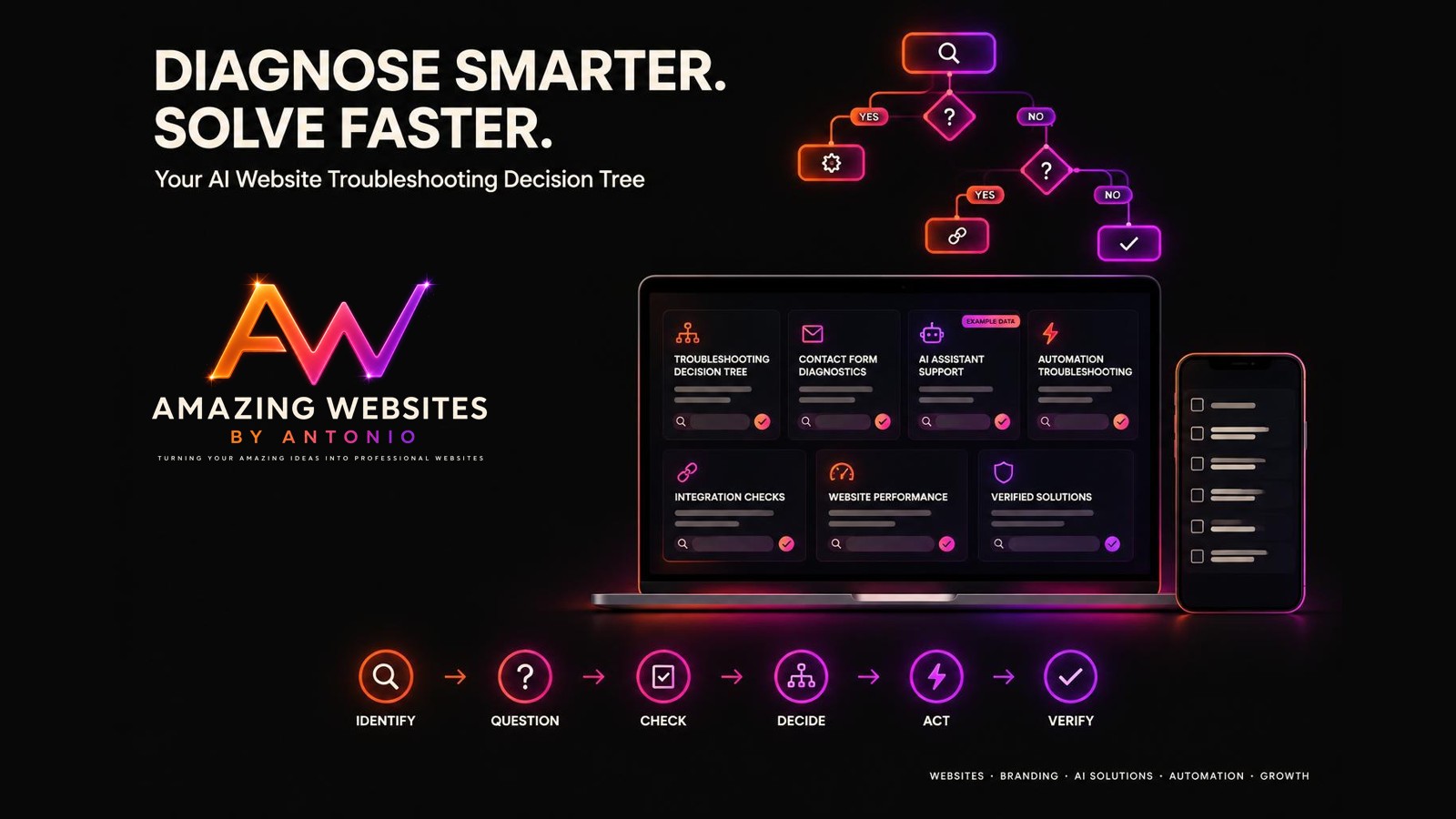
A Practical Guide to Diagnosing Website Errors, Troubleshooting AI Assistants, Investigating Automation Failures, and Creating Organized Problem-Solving Workflows
Imagine you're managing your professional business website.
Your homepage looks beautiful.
Your services are clearly displayed.
Your Contact form helps customers reach you.
Your AI assistant answers questions.
And your automations help keep your business organized.
Everything is working smoothly.
Then one day, you discover a problem.
A customer says the Contact form isn't working.
Or your AI assistant gives an incorrect answer.
Maybe an automation doesn't send its expected notification.
Perhaps a website button stops responding.
Or one of your pages suddenly takes longer to load.
You know something is wrong.
But where should you begin?
Should you check the website settings?
Review the connected integrations?
Test the Contact form?
Examine automation logs?
Contact the platform provider?
Or make a configuration change?
Without a clear troubleshooting process, it's easy to spend time investigating the wrong part of the system.
That's where an AI website troubleshooting decision tree becomes valuable.
AN AI WEBSITE TROUBLESHOOTING DECISION TREE IS A STRUCTURED SERIES OF QUESTIONS, DECISIONS, AND ACTIONS THAT HELPS YOU INVESTIGATE WEBSITE PROBLEMS STEP BY STEP.
Instead of guessing, you follow a logical diagnostic path.
You begin with the problem.
Ask an important question.
Review the available evidence.
Choose the appropriate next step.
And continue until you identify a verified cause, resolve the issue, or determine that additional assistance is needed.
A decision tree can help with:
- Contact form problems
- Email notification failures
- AI assistant errors
- Outdated AI knowledge
- Automation failures
- Broken integrations
- Website navigation issues
- Slow-loading pages
- Mobile functionality problems
- Accessibility issues
- Data synchronization errors
- Website availability
- Security concerns
- Customer support problems
The good news?
YOU DON'T NEED TO BE AN ADVANCED PROGRAMMER TO CREATE A USEFUL WEBSITE TROUBLESHOOTING DECISION TREE.
Even a solo entrepreneur can use a document, spreadsheet, flowchart, or visual planning tool to create an organized diagnostic process.
In Blog #142, we're exploring 50 practical strategies to help you diagnose website problems more efficiently.
PART 1: UNDERSTAND TROUBLESHOOTING DECISION TREES
1. Know What a Decision Tree Is
A troubleshooting decision tree is a structured diagram or sequence of questions that guides users through different diagnostic paths.
2. Understand Why Decision Trees Matter
They help reduce unnecessary guesswork and make troubleshooting more consistent.
3. Distinguish Symptoms From Causes
A symptom is what you observe.
A cause is the verified reason the problem occurs.
4. Use Evidence-Based Decisions
Choose diagnostic branches based on observations, tests, and reliable system information.
5. Establish a Clear Troubleshooting Goal
Define what successful diagnosis or resolution should look like.
PART 2: IDENTIFY AND CLASSIFY WEBSITE PROBLEMS
6. Document the Problem Clearly
Describe what is happening and what should happen instead.
7. Identify the Affected Feature
Determine whether the issue involves a form, AI assistant, automation, integration, or another component.
8. Review the Business Impact
Consider whether customers or important operations are affected.
9. Identify When the Problem Started
Check whether the issue appeared after an update, migration, or configuration change.
10. Classify the Issue's Urgency
Determine whether the problem requires routine troubleshooting or immediate protective action.
PART 3: DESIGN THE DECISION TREE STRUCTURE
11. Start With One Clear Problem
Avoid combining unrelated issues into a confusing diagnostic flow.
12. Ask Simple Diagnostic Questions
Use questions that can be answered through observation or testing.
13. Create Clear Decision Branches
Use Yes, No, and Unknown outcomes where appropriate.
14. Connect Each Branch to an Action
Explain what the user should check or do next.
15. Include Clear Endpoints
Every branch should lead to resolution, further investigation, escalation, or a documented limitation.
PART 4: BUILD CONTACT FORM TROUBLESHOOTING TREES
16. Check Whether the Form Loads
Determine whether customers can access the form.
17. Test Whether Submission Works
Use safe test information to evaluate form behavior.
18. Verify Inquiry Storage
Confirm whether the submitted information reaches the intended destination.
19. Review Notification Delivery
Check whether the expected notification is generated and delivered.
20. Document Contact Form Results
Record the affected step and the evidence collected.
PART 5: BUILD AI ASSISTANT TROUBLESHOOTING TREES
21. Identify the AI Problem Type
Determine whether the issue involves availability, accuracy, knowledge, or user experience.
22. Check Approved Knowledge Sources
Confirm that relevant business information is available and current.
23. Review AI Configuration
Check applicable instructions, settings, and supported capabilities.
24. Test Representative Questions
Compare actual responses with approved expectations.
25. Establish Human Handoff and Escalation
Provide appropriate assistance when the AI system cannot resolve the issue.
PART 6: BUILD AUTOMATION AND INTEGRATION TREES
26. Check the Automation Trigger
Determine whether the expected event occurred.
27. Review Workflow Execution
Check whether the automation started and completed.
28. Examine Connected Services
Review relevant integration availability and permissions.
29. Investigate Error Messages
Use available logs and platform documentation to understand failures.
30. Verify the Corrective Action
Retest the complete workflow after an approved correction.
PART 7: BUILD WEBSITE PERFORMANCE TREES
31. Identify the Affected Pages
Determine whether the problem affects one page or multiple pages.
32. Compare Devices and Browsers
Check whether the issue occurs in different supported environments.
33. Review Recent Changes
Investigate relevant updates or integrations.
34. Collect Performance Evidence
Use comparable measurements rather than assumptions.
35. Escalate Complex Performance Problems
Seek appropriate technical assistance when the cause cannot be established safely.
PART 8: MAKE TROUBLESHOOTING SAFE AND REPEATABLE
36. Begin With Low-Risk Checks
Prefer observation and testing before making changes.
37. Define Authorization Requirements
Identify actions that require administrative permission or approval.
38. Include Recovery Guidance
Document how to respond if a corrective action causes additional problems.
39. Protect Sensitive Information
Avoid exposing passwords, private records, or API secrets during troubleshooting.
40. Require Verification After Changes
Confirm that the original problem is resolved without creating new failures.
PART 9: CONNECT DECISION TREES TO YOUR KNOWLEDGE BASE
41. Assign a Decision Tree Identifier
Use a consistent reference number.
42. Link Related Knowledge Articles
Connect decision branches to relevant approved instructions.
43. Record Verified Solutions
Preserve successful troubleshooting results.
44. Update Outdated Branches
Revise decision trees when platforms or configurations change.
45. Review Difficult Diagnostic Paths
Improve branches that repeatedly cause confusion or fail to reach a useful outcome.
PART 10: IMPROVE TROUBLESHOOTING OVER TIME
46. Track Common Problem Categories
Identify issues that occur repeatedly.
47. Review Troubleshooting Outcomes
Evaluate which decision trees help resolve problems.
48. Identify Unnecessary Steps
Simplify branches that do not contribute useful diagnostic information.
49. Train Future Maintenance Owners
Use decision trees to explain important troubleshooting procedures.
50. Make Decision Trees Part of Routine Website Management
Maintain your diagnostic resources alongside other website documentation.
IDENTIFY → CLASSIFY → QUESTION → CHECK → DECIDE → ACT → VERIFY → DOCUMENT
WHY TROUBLESHOOTING DECISION TREES ARE VALUABLE
Without a structured process, website troubleshooting can become reactive.
You notice a problem.
Try several unrelated settings.
Make changes.
And hope something works.
That approach can create additional problems.
A decision tree provides a more organized alternative.
It helps you answer:
What exactly is failing?
Which system is affected?
What evidence is available?
Which diagnostic question should come next?
What action is appropriate?
When should the issue be escalated?
How will the solution be verified?
THE PURPOSE OF A DECISION TREE IS NOT TO GUESS THE ANSWER FASTER.
IT IS TO REACH A MORE RELIABLE CONCLUSION THROUGH ORGANIZED QUESTIONS AND EVIDENCE.
THE BASIC WEBSITE TROUBLESHOOTING DECISION TREE
START: A WEBSITE PROBLEM IS REPORTED
↓
QUESTION 1: IS THERE AN IMMEDIATE SECURITY, PRIVACY, OR CRITICAL SERVICE RISK?
YES → Follow the approved incident response or recovery procedure.
NO → Continue diagnosis.
↓
QUESTION 2: CAN THE PROBLEM BE REPRODUCED SAFELY?
YES → Record the conditions and observed behavior.
NO → Collect additional evidence and monitor.
↓
QUESTION 3: IS THE AFFECTED SYSTEM IDENTIFIED?
YES → Open the relevant system-specific decision tree.
NO → Review the customer journey and connected components.
↓
QUESTION 4: IS THERE A VERIFIED CAUSE?
YES → Evaluate an approved corrective action.
NO → Continue investigation or escalate.
↓
QUESTION 5: DID THE CORRECTION PASS THE REQUIRED TESTS?
YES → Document the result and close the issue when appropriate.
NO → Restore or recover as needed and continue investigation.
DECISION TREE EXAMPLE 1: CONTACT FORM NOT WORKING
Imagine a customer reports that your Contact form is not working.
Use the following diagnostic process.
START: CONTACT FORM PROBLEM
↓
DOES THE CONTACT FORM LOAD?
NO:
Check whether the page is accessible, review relevant website errors, and investigate recent changes.
YES:
Continue.
↓
CAN A SAFE TEST SUBMISSION BE COMPLETED?
NO:
Review validation errors, required fields, and available form logs.
YES:
Continue.
↓
IS THE TEST INQUIRY STORED?
NO:
Investigate the form's storage connection and relevant errors.
YES:
Continue.
↓
IS THE EXPECTED NOTIFICATION DELIVERED?
NO:
Review the notification workflow, recipient configuration, and available delivery logs.
YES:
The tested workflow has completed its expected steps.
↓
DOCUMENT AND VERIFY
Record the result, including any unresolved issues.
IMPORTANT:
A single successful test does not guarantee that every future submission will succeed.
Continue appropriate monitoring.
DECISION TREE EXAMPLE 2: AI ASSISTANT GIVING INCORRECT INFORMATION
START: AI ASSISTANT RESPONSE PROBLEM
↓
IS THE RELEVANT BUSINESS INFORMATION APPROVED AND CURRENT?
NO:
Correct the source information through the approved process.
YES:
Continue.
↓
CAN THE AI ASSISTANT ACCESS THE REQUIRED KNOWLEDGE?
NO:
Investigate the supported knowledge connection or configuration.
YES:
Continue.
↓
DOES THE RESPONSE MATCH APPROVED EXPECTATIONS?
NO:
Review applicable instructions, retrieval behavior, and test results.
YES:
Continue with representative testing.
↓
IS THE ISSUE RESOLVED ACROSS THE REQUIRED TEST CASES?
YES:
Document the verified result.
NO:
Escalate or apply an approved alternative, including human assistance when appropriate.
IMPORTANT:
AI responses may vary between tests.
Evaluate important factual accuracy and safety requirements rather than relying only on identical wording.
DECISION TREE EXAMPLE 3: AUTOMATION NOT RUNNING
START: AUTOMATION FAILURE
↓
DID THE EXPECTED TRIGGER EVENT OCCUR?
NO:
Investigate the source event and trigger conditions.
YES:
Continue.
↓
DID THE AUTOMATION START?
NO:
Review the trigger connection, workflow status, and available logs.
YES:
Continue.
↓
DID THE AUTOMATION COMPLETE?
NO:
Review the failed step and relevant error information.
YES:
Continue.
↓
DID THE EXPECTED BUSINESS RESULT OCCUR?
NO:
Investigate the destination system and possible partial completion.
YES:
Document the successful test.
IMPORTANT:
Do not repeatedly replay an automation without checking whether earlier attempts already created records, sent messages, or performed other actions.
DECISION TREE EXAMPLE 4: WEBSITE PAGE LOADING SLOWLY
START: SLOW WEBSITE PAGE
↓
IS THE PROBLEM LIMITED TO ONE PAGE?
YES:
Review that page's relevant resources, scripts, and recent changes.
NO:
Investigate broader website or platform conditions.
↓
DOES THE ISSUE OCCUR ON MULTIPLE DEVICES OR CONNECTIONS?
YES:
Collect comparable performance evidence.
NO:
Investigate the affected environment.
↓
DID THE PROBLEM BEGIN AFTER A RECENT CHANGE?
YES:
Review the relevant change and its dependencies.
NO OR UNKNOWN:
Continue collecting diagnostic evidence.
↓
IS A VERIFIED CAUSE IDENTIFIED?
YES:
Evaluate an approved correction and retest.
NO:
Escalate when appropriate.
YOUR WEBSITE TROUBLESHOOTING DIAGNOSTIC MATRIX
| Problem | First Diagnostic Question | Useful Evidence |
|---|---|---|
| Contact Form Failure | Can the form be submitted? | Form errors and submission results |
| Missing Notification | Was the inquiry stored? | Storage records and notification logs |
| Incorrect AI Answer | Is approved knowledge accurate? | Knowledge source and test response |
| Automation Failure | Did the trigger occur? | Event and execution logs |
| Broken Integration | Is the connection functioning? | Connection status and error messages |
| Slow Website Page | Which pages are affected? | Comparable performance measurements |
| Broken Navigation | Does the target link work? | Link destination and browser behavior |
| Missing Data | Which records are absent? | Source and destination comparisons |
YOUR TROUBLESHOOTING DECISION TREE DESIGN RULES
Use these seven rules when creating a decision tree.
RULE 1: START WITH A SPECIFIC PROBLEM
Avoid vague starting points.
RULE 2: ASK ONE QUESTION AT A TIME
Each decision should have a clear purpose.
RULE 3: USE OBSERVABLE RESULTS
Avoid branches based only on guesses.
RULE 4: INCLUDE AN UNKNOWN OPTION
Not every question can be answered immediately.
RULE 5: PRIORITIZE SAFE ACTIONS
Avoid unnecessary changes to production systems.
RULE 6: INCLUDE ESCALATION POINTS
Know when further assistance is required.
RULE 7: VERIFY EVERY CORRECTION
Confirm that the original issue is resolved and that important related workflows still work.
YOUR TROUBLESHOOTING DECISION TREE READINESS SCORECARD
Use this illustrative scorecard.
Assign:
- 2 points: Requirement satisfied
- 1 point: Partially satisfied
- 0 points: Not satisfied
| Decision Tree Category | Maximum Points |
|---|---|
| Clear Problem Definition | 2 |
| Affected System Identified | 2 |
| Business Impact Considered | 2 |
| Logical Diagnostic Questions | 2 |
| Clear Decision Branches | 2 |
| Evidence Requirements Defined | 2 |
| Safe Corrective Actions | 2 |
| Escalation Guidance Included | 2 |
| Verification Steps Included | 2 |
| Documentation Owner Assigned | 2 |
| Total | 20 |
Illustrative Interpretation
| Score | Suggested Interpretation |
|---|---|
| 18–20 | Generally well structured |
| 14–17 | Some improvements recommended |
| 10–13 | Significant diagnostic gaps |
| 0–9 | Decision tree requires further development |
IMPORTANT:
A high score does not guarantee that a troubleshooting procedure is technically accurate or safe.
Review the decision tree against the current platform and approved procedures.
YOUR AI WEBSITE TROUBLESHOOTING DASHBOARD
A troubleshooting dashboard can help organize diagnostic activity.
Consider tracking:
- Problems reported
- Problems categorized
- Decision trees available
- Decision trees verified
- Issues resolved using decision trees
- Issues requiring escalation
- Recurring problems
- Outdated decision trees
- Average diagnostic time
- Documentation updates completed
FICTIONAL DASHBOARD EXAMPLE
| Metric | Example |
|---|---|
| Troubleshooting Decision Trees | 18 |
| Verified Decision Trees | 14 |
| Issues Investigated This Month | 25 |
| Issues Resolved With Documented Guidance | 19 |
| Issues Escalated | 4 |
| Issues Awaiting Investigation | 2 |
| Decision Trees Awaiting Review | 3 |
| New Documentation Updates | 5 |
These figures are fictional and do not represent actual Amazing Websites By Antonio troubleshooting activity.
HOW TO MEASURE TROUBLESHOOTING EFFICIENCY
One useful metric is the average time required to reach a documented diagnostic outcome.
AVERAGE DIAGNOSTIC TIME = TOTAL DIAGNOSTIC TIME ÷ NUMBER OF COMPLETED DIAGNOSTIC ATTEMPTS
FICTIONAL EXAMPLE
Five completed diagnostic attempts take:
- 10 minutes
- 15 minutes
- 20 minutes
- 25 minutes
- 30 minutes
Total diagnostic time:
100 minutes.
Average:
100 ÷ 5 = 20 minutes
This metric may help identify opportunities to improve troubleshooting.
However, faster diagnosis is not always better.
Accuracy, safety, and appropriate escalation remain essential.
COMPLETE AI WEBSITE TROUBLESHOOTING DECISION TREE CHECKLIST
SECTION 1 — PROBLEM IDENTIFICATION
- Problem is clearly described.
- Affected system is identified.
- Expected behavior is documented.
- Actual behavior is recorded.
- Business impact is reviewed.
SECTION 2 — DECISION TREE STRUCTURE
- Starting point is specific.
- Diagnostic questions are clear.
- Decision branches are logical.
- Unknown outcomes are supported.
- Endpoints are defined.
SECTION 3 — CONTACT FORM TROUBLESHOOTING
- Form availability is checked.
- Submission behavior is tested.
- Inquiry storage is verified.
- Notification delivery is reviewed.
- Results are documented.
SECTION 4 — AI ASSISTANT TROUBLESHOOTING
- AI issue type is identified.
- Approved knowledge is reviewed.
- Configuration is checked.
- Representative questions are tested.
- Human handoff is available.
SECTION 5 — AUTOMATIONS AND INTEGRATIONS
- Trigger occurrence is verified.
- Workflow execution is reviewed.
- Connected services are checked.
- Relevant errors are investigated.
- Corrective actions are tested.
SECTION 6 — WEBSITE PERFORMANCE
- Affected pages are identified.
- Device and browser differences are reviewed.
- Recent changes are considered.
- Performance evidence is collected.
- Escalation criteria are documented.
SECTION 7 — SAFETY AND VERIFICATION
- Low-risk checks are prioritized.
- Authorization requirements are defined.
- Recovery procedures are referenced.
- Sensitive information is protected.
- Fixes are verified.
SECTION 8 — KNOWLEDGE BASE INTEGRATION
- Decision tree ID is assigned.
- Related knowledge articles are linked.
- Verified solutions are recorded.
- Outdated branches are reviewed.
- Difficult diagnostic paths are improved.
SECTION 9 — CONTINUOUS IMPROVEMENT
- Recurring issues are tracked.
- Troubleshooting outcomes are reviewed.
- Unnecessary steps are identified.
- Maintenance owners understand the procedures.
- Decision trees are reviewed after relevant changes.
COPY-READY AI WEBSITE TROUBLESHOOTING DECISION TREE TEMPLATE
BUSINESS NAME:
[Enter Business Name]
WEBSITE:
[Enter Website Address]
DECISION TREE ID:
[Enter Identifier]
DECISION TREE TITLE:
[Enter Title]
CATEGORY:
[Enter Category]
DATE CREATED:
[Enter Date]
PREPARED BY:
[Enter Name]
SECTION 1 — PROBLEM OVERVIEW
PROBLEM DESCRIPTION:
[Describe Problem]
EXPECTED BEHAVIOR:
[Describe Expected Behavior]
ACTUAL BEHAVIOR:
[Describe Actual Behavior]
AFFECTED SYSTEM:
[Enter System]
BUSINESS IMPACT:
[Describe Impact]
SECTION 2 — INITIAL SAFETY REVIEW
SECURITY OR PRIVACY CONCERN:
Yes / No / Unknown
CRITICAL BUSINESS IMPACT:
Yes / No / Unknown
IMMEDIATE PROTECTIVE ACTION REQUIRED:
Yes / No
INCIDENT RESPONSE REFERENCE:
[Enter Reference]
SECTION 3 — DECISION TREE STARTING POINT
STARTING CONDITION:
[Describe Condition]
QUESTION 1:
[Enter Question]
IF YES:
[Enter Next Step]
IF NO:
[Enter Next Step]
IF UNKNOWN:
[Enter Evidence Collection Step]
SECTION 4 — ADDITIONAL DIAGNOSTIC BRANCHES
QUESTION 2:
[Enter Question]
IF YES:
[Enter Action]
IF NO:
[Enter Action]
IF UNKNOWN:
[Enter Action]
QUESTION 3:
[Enter Question]
IF YES:
[Enter Action]
IF NO:
[Enter Action]
IF UNKNOWN:
[Enter Action]
SECTION 5 — DIAGNOSTIC EVIDENCE
REQUIRED TESTS:
[List Tests]
AVAILABLE LOGS:
[List Logs]
OBSERVED RESULTS:
[Enter Results]
POSSIBLE CAUSES:
[List Possibilities]
VERIFIED CAUSE:
[Enter Verified Finding]
SECTION 6 — CORRECTIVE ACTION
APPROVED CORRECTION:
[Describe Action]
AUTHORIZATION REQUIRED:
[Enter Requirement]
POTENTIAL RISKS:
[List Risks]
RECOVERY PROCEDURE:
[Enter Reference]
SECTION 7 — VERIFICATION
TEST PROCEDURE:
[Describe Test]
EXPECTED RESULT:
[Enter Result]
ACTUAL RESULT:
[Enter Result]
VERIFICATION STATUS:
Pass / Fail / Needs Review / Not Tested
SECTION 8 — ESCALATION
ESCALATION CONDITIONS:
[List Conditions]
SUPPORT CONTACT:
[Enter Contact]
RELATED ISSUE ID:
[Enter Identifier]
ESCALATION STATUS:
Not Required / Pending / Escalated / Resolved
SECTION 9 — DOCUMENTATION
RELATED KNOWLEDGE ARTICLES:
[List Articles]
MAINTENANCE LOG REFERENCE:
[Enter Reference]
LESSONS LEARNED:
[List Lessons]
DOCUMENTATION UPDATES:
[List Updates]
SECTION 10 — REVIEW AND APPROVAL
REVIEWED BY:
[Enter Name]
REVIEW DATE:
[Enter Date]
DECISION TREE STATUS:
Draft / Under Review / Verified / Published / Archived
NEXT REVIEW DATE:
[Enter Date]
EXAMPLE AI WEBSITE TROUBLESHOOTING SCENARIO
The following scenario is fictional.
Situation: A Solo Entrepreneur Diagnoses a Missing Contact Form Notification
A solo entrepreneur manages a professional business website.
A customer submits a Contact form.
The customer receives a submission confirmation.
But the business owner doesn't receive the expected notification.
Instead of immediately changing website settings, the entrepreneur follows a troubleshooting decision tree.
Step 1 — Identify the Problem
The expected notification is missing.
Step 2 — Check for Critical Impact
The entrepreneur confirms whether customer inquiries are being stored and whether important business operations are affected.
Step 3 — Verify the Submission
The entrepreneur checks whether the customer inquiry exists in the authorized inquiry management system.
Step 4 — Review the Automation Trigger
The entrepreneur checks whether the submission event activated the expected workflow.
Step 5 — Examine Notification Results
Available logs show that the notification action did not complete.
Step 6 — Identify the Cause
The entrepreneur confirms that an integration connection requires reauthorization.
Step 7 — Apply an Approved Correction
The connection is restored using the service's supported authorization process.
Step 8 — Test the Workflow
Safe test submissions confirm that the inquiry is stored and notifications are delivered.
Step 9 — Document the Solution
The verified cause and corrective steps are recorded.
Step 10 — Update the Knowledge Base
The entrepreneur adds a troubleshooting article for future reference.
LESSON:
A structured decision tree helps the business owner move from a symptom to a verified cause without unnecessary configuration changes.
YOUR 30-DAY AI WEBSITE TROUBLESHOOTING DECISION TREE IMPLEMENTATION PLAN
WEEK 1 — IDENTIFY IMPORTANT PROBLEMS
- Review recurring website issues.
- Identify critical customer workflows.
- Group problems into categories.
- Define troubleshooting priorities.
- Select the first decision trees to create.
GOAL: Focus on the problems that matter most.
WEEK 2 — DESIGN DECISION TREES
- Write clear starting conditions.
- Create diagnostic questions.
- Define Yes, No, and Unknown branches.
- Add appropriate actions.
- Include escalation endpoints.
GOAL: Build logical diagnostic paths.
WEEK 3 — TEST AND DOCUMENT
- Review each branch.
- Test representative scenarios safely.
- Verify corrective instructions.
- Link related knowledge articles.
- Document recovery and escalation guidance.
GOAL: Confirm that the decision trees are practical and appropriate.
WEEK 4 — IMPLEMENT AND IMPROVE
- Publish approved decision trees.
- Make them searchable.
- Review troubleshooting outcomes.
- Improve confusing branches.
- Establish regular documentation reviews.
GOAL: Make structured troubleshooting part of ongoing website maintenance.
THE AI WEBSITE TROUBLESHOOTING DECISION TREE FRAMEWORK
IDENTIFY
Describe the problem clearly.
↓
CLASSIFY
Determine the affected system and urgency.
↓
QUESTION
Ask a focused diagnostic question.
↓
CHECK
Collect relevant evidence.
↓
DECIDE
Choose the appropriate next branch.
↓
ACT
Apply a safe, approved corrective action when justified.
↓
VERIFY
Confirm the result.
↓
DOCUMENT
Preserve the verified findings and update the knowledge base.
FINAL THOUGHTS
Creating a professional business website is an exciting accomplishment.
It represents your creativity.
Your services.
Your brand.
And your commitment to helping customers.
But every website can encounter unexpected problems.
A Contact form may stop working.
An AI assistant may provide outdated information.
An automation may fail.
An integration may become unavailable.
Or a page may behave differently after an update.
These challenges can feel frustrating.
But troubleshooting becomes more manageable when you have an organized process.
That's why an AI website troubleshooting decision tree matters.
It helps you identify problems.
Ask useful questions.
Collect evidence.
Choose appropriate diagnostic paths.
Apply verified solutions.
And document what you've learned.
GOOD TROUBLESHOOTING ISN'T ABOUT CHANGING SETTINGS UNTIL SOMETHING WORKS.
IT'S ABOUT USING EVIDENCE, LOGICAL QUESTIONS, AND SAFE PROCEDURES TO FIND THE RIGHT SOLUTION.
Start with one common website problem.
Create a clear decision tree.
Test the branches.
Document the results.
And improve your instructions over time.
Because professional website management isn't just about solving problems when they happen.
IT'S ABOUT BUILDING A REPEATABLE PROCESS THAT HELPS YOU SOLVE THEM MORE RELIABLY IN THE FUTURE.
IDENTIFY THE PROBLEM.
FOLLOW THE EVIDENCE.
VERIFY THE SOLUTION.
KEEP BUILDING BETTER WEBSITES.
Amazing Websites By Antonio
Turning Your Amazing Ideas Into Professional Websites